Log inRegister

Windows 10/11 context menu
- Windows 10/11 context menu
- Add items to the context menu
- Remove items from the context menu
- 01. Remove CRC SHA from FILE context menu
- 02. Remove Share with/Give access to, Share, Restore previous versions and Include in library from FILE context menu
- 03. Remove Run as administrator from the known file types context menu
- 04. Remove Restore from snapshot from the FILE and FOLDER context menus
- 05. Remove duplicate PowerToys context menu items
- 07. Remove Edit with Notepad++ from the FILE context menu
- 08. Win11 NEW context menu: remove the Copilot and Edit with Paint items from the context menu
- 09. Win11 NEW context menu: remove the OneDrive item from the context menu
- 10. Win11 NEW context menu: remove the Photos item from the context menu
- 11. Hide Set as desktop background from the context menu of image files
- 12. Remove Add to Favorites from the context menu
- Modify context menu items
Add items to the context menu
Restore New > Text Document in Windows Explorer context menu
https://www.tenforums.com/tutorials/24412-add-remove-default-new-context-menu-items-windows-10-a.html#option1 Restore_New_Text_Document_context_menu_item.regRemove items from the context menu
Keep your context menu sleek!01. Remove CRC SHA from FILE context menu
- Open 7-Zip File Manager.
- On the 7-Zip window, switch to the Tools menu and then select the Options... button.
- On the Options page, switch to the 7-Zip tab and then uncheck the CRC SHA option in the Context menu items section.
02. Remove Share with/Give access to, Share, Restore previous versions and Include in library from FILE context menu
- Open Winaero Tweaker.
- Scroll down to the Context Menu section and then select Remove Default Entries.
- Check the Cast to Device, Share with/Give Access To, Share (Modern Sharing), Restore Previous Versions, Include in library, Open in Windows Terminal, Add to Favorites, Edit in Notepad and Edit in Clipchamp checkboxes.
03. Remove Run as administrator from the known file types context menu
In the Registry Editor, delete the Computer\HKEY_CLASSES_ROOT\*\shell\RunAs key See attachment: DelRunAsAdmin.reg04. Remove Restore from snapshot from the FILE and FOLDER context menus
By default, Rollback RX Home adds 'Restore from snapshot' to the context menus of files and folders.- in the Registry Editor, go to Computer\HKEY_CLASSES_ROOT\*\shellex\ContextMenuHandlers\ShdExt - this probably stands for Shield Extension
- double-click the (Default) string value and prefix its data with some dashes (I used the prefix ----LegacyDisable----)
- then go to Computer\HKEY_CLASSES_ROOT\Directory\shellex\ContextMenuHandlers\ShdExt
- again, double-click the (Default) string value and prefix its data with some dashes
- you don't have to logoff/logon - the changes take place immediately!
05. Remove duplicate PowerToys context menu items
PowerToys has the following context menu items:- Resize pictures
- PowerRename
- Unlock with File Locksmith ► this one can simply be disabled in the settings of PowerToys itself
[HKEY_CLASSES_ROOT\PackagedCom\ClassIndex\{1861E28B-A1F0-4EF4-A1FE-4C8CA88E2174}]
Image Resizer context menu:
[HKEY_CLASSES_ROOT\PackagedCom\ClassIndex\{8F491918-259F-451A-950F-8C3EBF4864AF}]
Attached you find a backup of these registry keys. You never know you need them. Be aware that they return when you update PowerToys: HCR-PC-CI-PT.ImgResizerCtxMenu_metro.reg & HCR-PC-CI-Ms.PT.PwrRenameCtxMenu_metro.reg.
And also a registry script to delete these entries: DelPowerToysImageResizerAndPowerRename.reg
Maybe a more final solution can be found here: https://winaero.com/how-to-remove-edit-with-clipchamp-from-context-menu-in-file-explorer/.
06. Hide Open in new tab / window from the FOLDER context menus [DON'T]
Don't remove them, I did this first, but this lead to a non functioning Windows Explorer (!):- In the registry, go to HKCR\Folder\shell and delete the opennewtab and opennewwindow keys
- The change is immediate (no restart required)
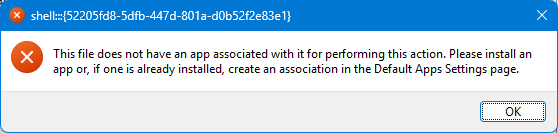 So, putting back the backup of these entries solved this!
You can however move them to the Extended context menu (the one that appears when you right-click while holding the Shift key):
So, putting back the backup of these entries solved this!
You can however move them to the Extended context menu (the one that appears when you right-click while holding the Shift key): - If you want to add the "Open in new window" to the extended context menu (that's the one that appears when right-clicking a file or folder while pressing the Shift key), then you must add an empty String Value to HKCR\Folder\shell\opennewwindow, named 'Extended'. (See opennewprocess entry where this entry is)
- The same goes for "Open in new tab".
07. Remove Edit with Notepad++ from the FILE context menu
This entry seems to be present for any file type (.xlsx, .jpg, …). You can remove it as follows:- open an elevated command prompt
- type cd "c:\Program Files\Notepad++\contextMenu" and hit Enter
- Type regsvr32 /u NppShell.dll and hit Enter
- Type exit and hit Enter to close command line
08. Win11 NEW context menu: remove the Copilot and Edit with Paint items from the context menu
These items can have various CLSID's, so you'll first have to find out the ones for your specific system: in PowerShell, issue the following command:(Get-AppxPackage | Get-AppxPackageManifest) | foreach { $_.package.Applications.Application.Extensions.Extension.FileExplorerContextMenus.itemtype.verb } | select Id,Clsid -unique
En dan krijg je iets als:
| Id | Clsid |
|---|---|
| EditInPaint | 2430F218-B743-4FD6-97BF-5C76541B4AE9 |
| -- | ----- |
| WinMergeDir | 90340779-F37E-468E-9728-A2593498ED32 |
| WinMerge | 90340779-F37E-468E-9728-A2593498ED32 |
| AShellEdit | BFE0E2A4-C70C-4AD7-AC3D-10D1ECEBB5B4 |
| CreateWithDesigner | 7a53b94a-4e6e-4826-b48e-535020b264e5 |
| ShellEdit | BFE0E2A4-C70C-4AD7-AC3D-10D1ECEBB5B4 |
| EditWith | 8AB635F8-9A67-4698-AB99-784AD929F3B4 |
| FileLocksmithCommand | AAF1E27D-4976-49C2-8895-AAFA743C0A7E |
| ImageResizerCommand | 8F491918-259F-451A-950F-8C3EBF4864AF |
| PowerRenameCommand | 1861E28B-A1F0-4EF4-A1FE-4C8CA88E2174 |
| OpenTerminalHere | 9f156763-7844-4dc4-b2b1-901f640f5155 |
| AskM365Copilot | 4a616e61-3bfe-4f5c-937f-b8602bf16679 |
| Command0 | 1FA0E654-C9F2-4A1F-9800-B9A75D744B00 |
| Command1 | 1FA0E654-C9F2-4A1F-9800-B9A75D744B01 |
| Command2 | 1FA0E654-C9F2-4A1F-9800-B9A75D744B02 |
| Command3 | 1FA0E654-C9F2-4A1F-9800-B9A75D744B03 |
| Command4 | 1FA0E654-C9F2-4A1F-9800-B9A75D744B04 |
| Command5 | 1FA0E654-C9F2-4A1F-9800-B9A75D744B05 |
| Command0 | 5250E46F-BB09-D602-5891-F476DC89B700 |
| AskCopilot | ED215C26-C810-49CE-929E-31D7E83A82E9 |
| 0000NanaZipShellExtension | CAE3F1D4-7765-4D98-A060-52CD14D56EAB |
{4a616e61-3bfe-4f5c-937f-b8602bf16679}
{2430F218-B743-4FD6-97BF-5C76541B4AE9} The change is instant, you don't have to restart.
09. Win11 NEW context menu: remove the !OneDrive item from the context menu
If you look up the CLSID's belonging to the Command0 to Command5 ID's in Computer\HKEY_CLASSES_ROOT\PackagedCom\ClassIndex\, you'll find out that they all relate to OneDrive. Also add these ones to the Blocked key as String Values, and the OneDrive entry disappears from the context menu: {1FA0E654-C9F2-4A1F-9800-B9A75D744B00}{...01}
{...02}
{...03}
{...04}
{5250E46F-BB09-D602-5891-F476DC89B705}
{5250E46F-BB09-D602-5891-F476DC89B700}
10. Win11 NEW context menu: remove the Photos item from the context menu
That's a difficult one. I had a PC where I had Photos > (with a submenu), and one with Edit with PhotosPhotos > (with a submenu)
- open a system shell
- go to C:\Program Files\WindowsApps
- dir *photos*
- go to the found directory (the one without 'neutral'): cd Microsoft.Windows.Photos_2026.11020.20001.0_x64__8wekyb3d8bbwe
- edit AppxManifest.xml
- scroll down to or search (Ctrl+f) ContextMenus
- all image file types are listed and all mention the same two Verb Id's:
             <desktop5:ItemType Type=".png">
                <desktop5:Verb Id="AShellEdit" Clsid="BFE0E2A4-C70C-4AD7-AC3D-10D1ECEBB5B4" />
                <desktop5:Verb Id="CreateWithDesigner" Clsid="7a53b94a-4e6e-4826-b48e-535020b264e5" />
             </desktop5:ItemType>
Use the mentioned CLSID values in the Blocked list from 08. & 09. and Photos disappears from the context menu.
source: https://www.reddit.com/r/WindowsHelp/comments/1smv8m4/does_anyone_know_what_registry_entry_this_exists/
Before |
After |
|---|---|
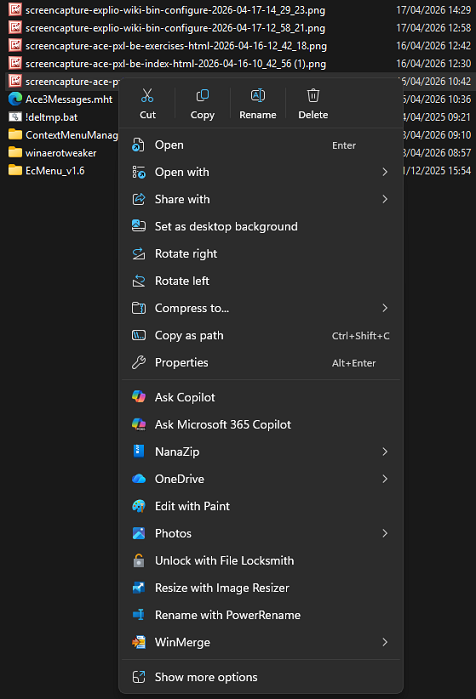 |
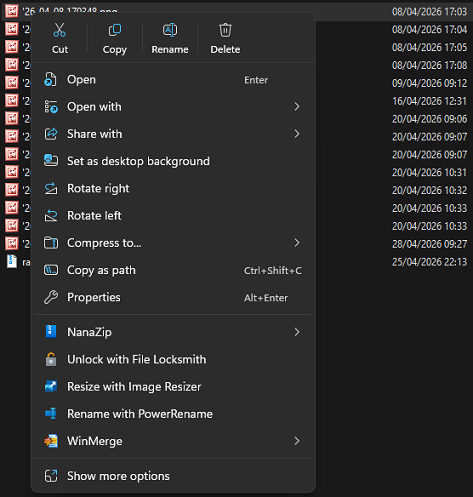 |
Edit with Photos
See 8. There I needed the CLSID from AShellEdit to be added to the Blocked list (see Verb Id) {BFE0E2A4-C70C-4AD7-AC3D-10D1ECEBB5B4}11. Hide Set as desktop background from the context menu of image files
On ElevenForum, you find .reg files that delete/restore the registry entries that control this setting: Add or Remove "Set as desktop background" Context Menu in Windows 11 However,- this is a drastic method, since it deletes registry entries
- not all image file types are included, e.g. .webp files
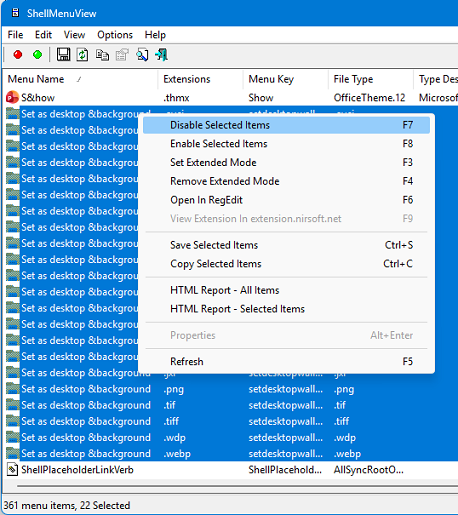 This tool doesn't delete registry entries, but adds an entry
HKCR\SystemFileAssociations\.ext\Shell\setdesktopwallpaper: an empty String Value is added, named !LegacyDisable.
This tool doesn't delete registry entries, but adds an entry
HKCR\SystemFileAssociations\.ext\Shell\setdesktopwallpaper: an empty String Value is added, named !LegacyDisable.
12. Remove Add to Favorites from the context menu
- regedit
- goto Computer\HKEY_CURRENT_USER\Software\Classes\*\shell\pintohomefile
- Add a String Value named ProgrammaticAccessOnly, and keep Value data empty.
Modify context menu items
You want to edit .reg, .sql and .vbs files with another app (Notepad++) than the one that opens them: Look for the (Default) string value of the extension directly under HKCR:- .reg: (Default) regfile
- .sql: (Default) SQLFile
- .vbs: (Default) VBSFile
- HKCR\regfile\shell\edit\command: change (Default) to "C:\Program Files\Notepad++\notepad++.exe" "%1"
- HKCR\VBSFile\Shell\Edit\Command: change (Default) to "C:\Program Files\Notepad++\notepad++.exe" "%1"
- HKCR\SQLC.Document\shell\edit\command: change (Default) to "C:\Program Files\Notepad++\notepad++.exe" "%1"
- HKCROOT\SystemFileAssociations\.ps1\Shell\Edit\Command: change (Default) to "C:\Program Files\Notepad++\notepad++.exe" "%1"
Add Windows Terminal to the context menu
Obsolete, since I'm now using the Terminal from the Windows Explorer address bar Windows Terminal, see: WinTerminal- Context Menu: https://github.com/lextm/windowsterminal-shell
- don't simply download the install.ps1 and uninstall.ps1 files, because it won't work
- download the complete <> Code using the button
- .\install.ps1 flat and .\uninstall.ps1 flat
- *.\install.ps1 mini* and .\uninstall.ps1 mini





 Copyright © by the contributing authors. All material on this collaboration platform is the property of the contributing authors.
 Ideas, requests, problems regarding Foswiki? Send feedback